 PearPass
Delete An Item From Your Vault
If you no longer need an item in your vault, you can delete it safely.
Deleted items cannot be recovered, so make sure you really want to delete them before confirming.
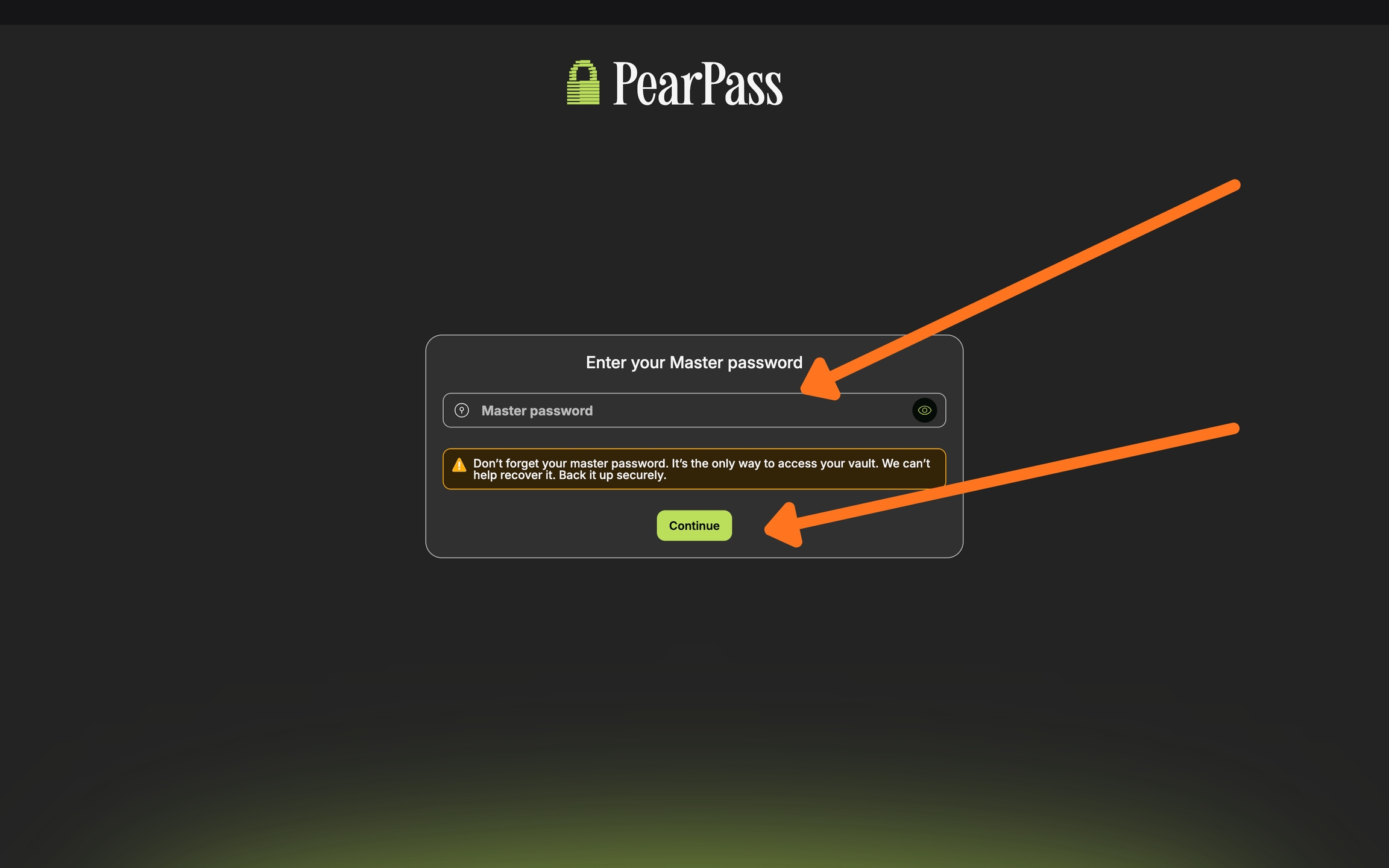
Open PearPass and sign in
Open your PearPass application on your computer and sign in with your master password.
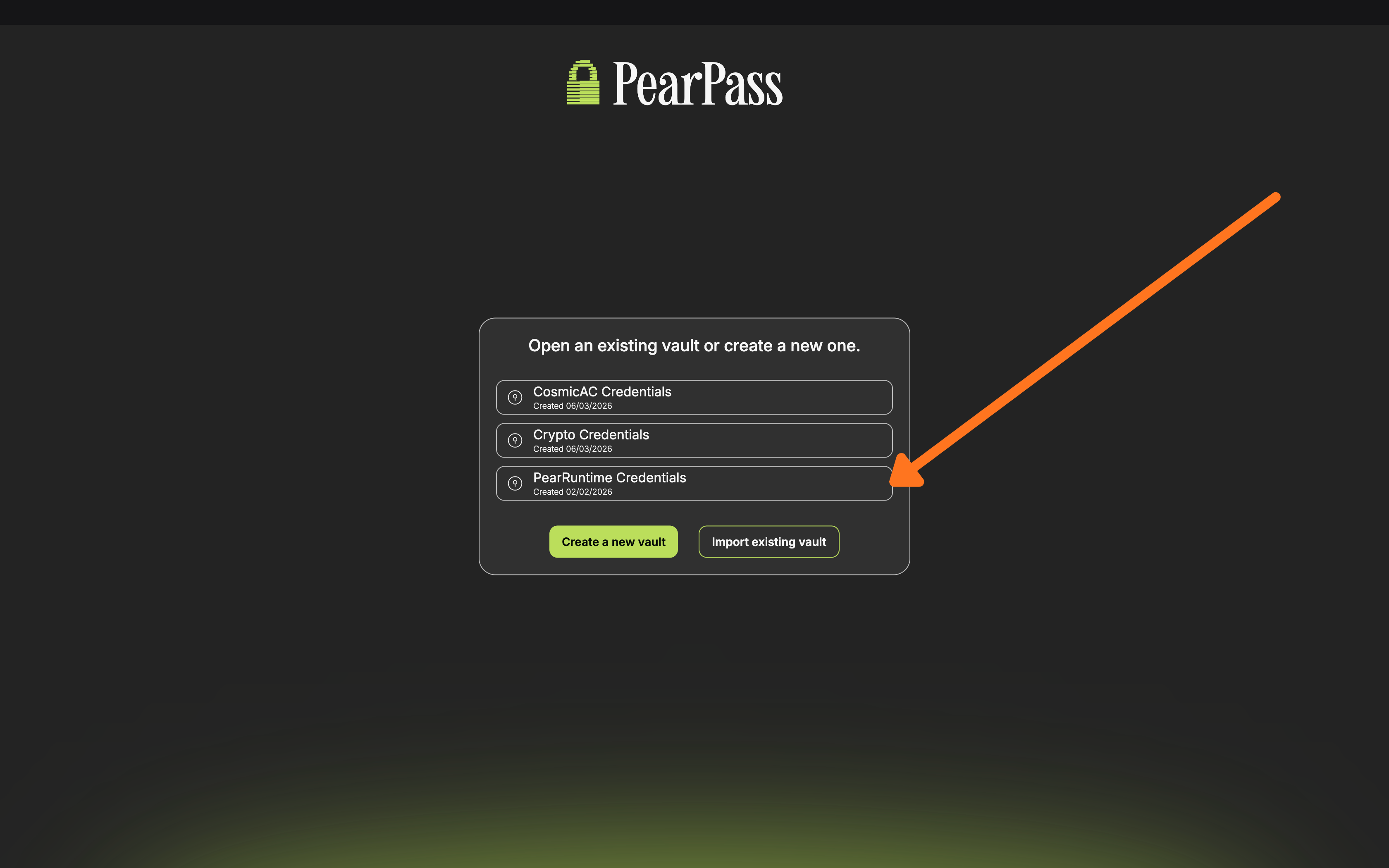
Select the vault
Select the vault that contains the item you want to delete. For this example, we'll use the PearRuntime Credentials vault.
Select the item
Find the item you want to delete in the vault list and click on it to open its details. In this example, we'll be deleting the PearRuntime Developer Community entry.
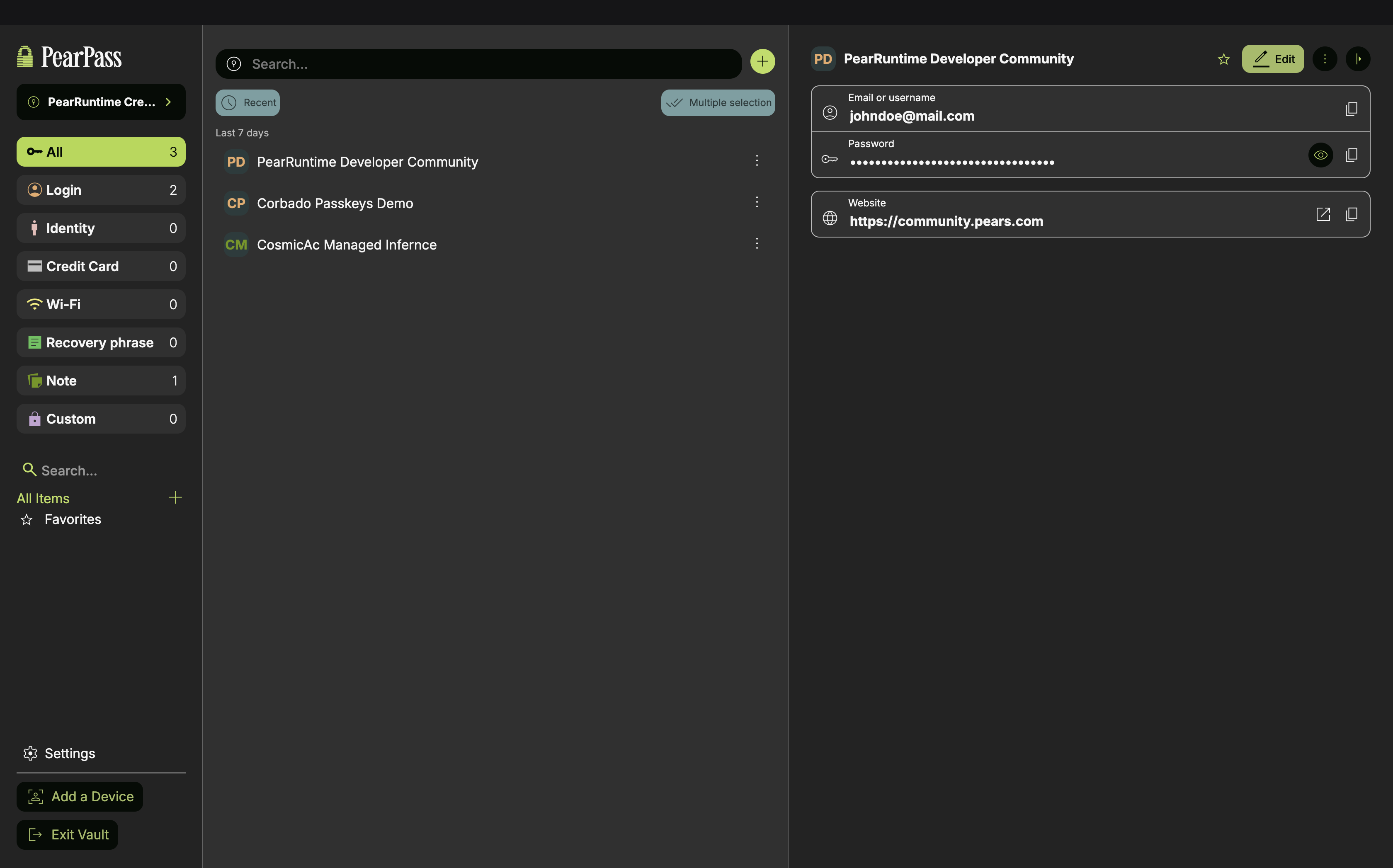
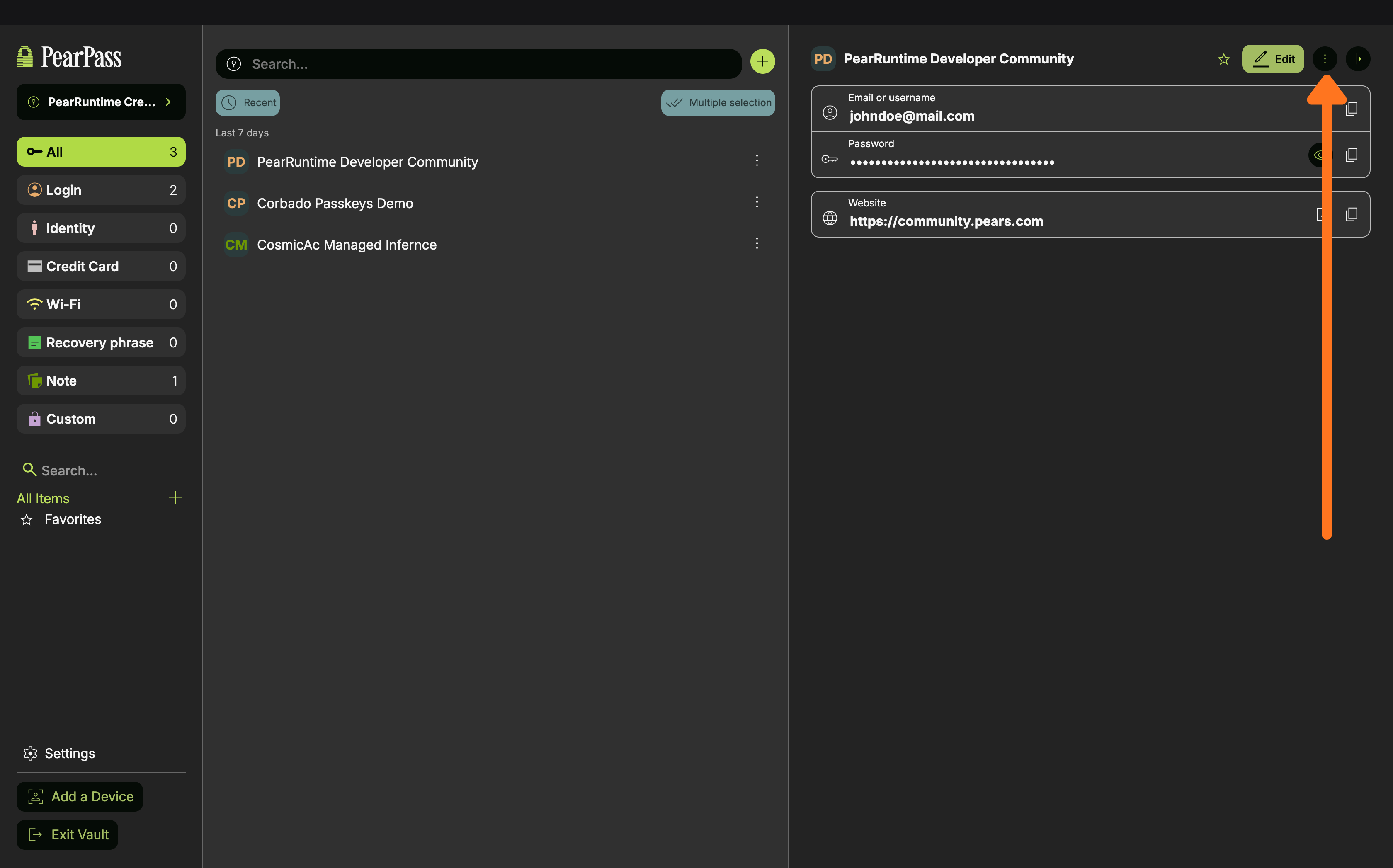
Open the menu
Click the ⋮ icon (next to the Edit button) to open the menu and access the delete option.
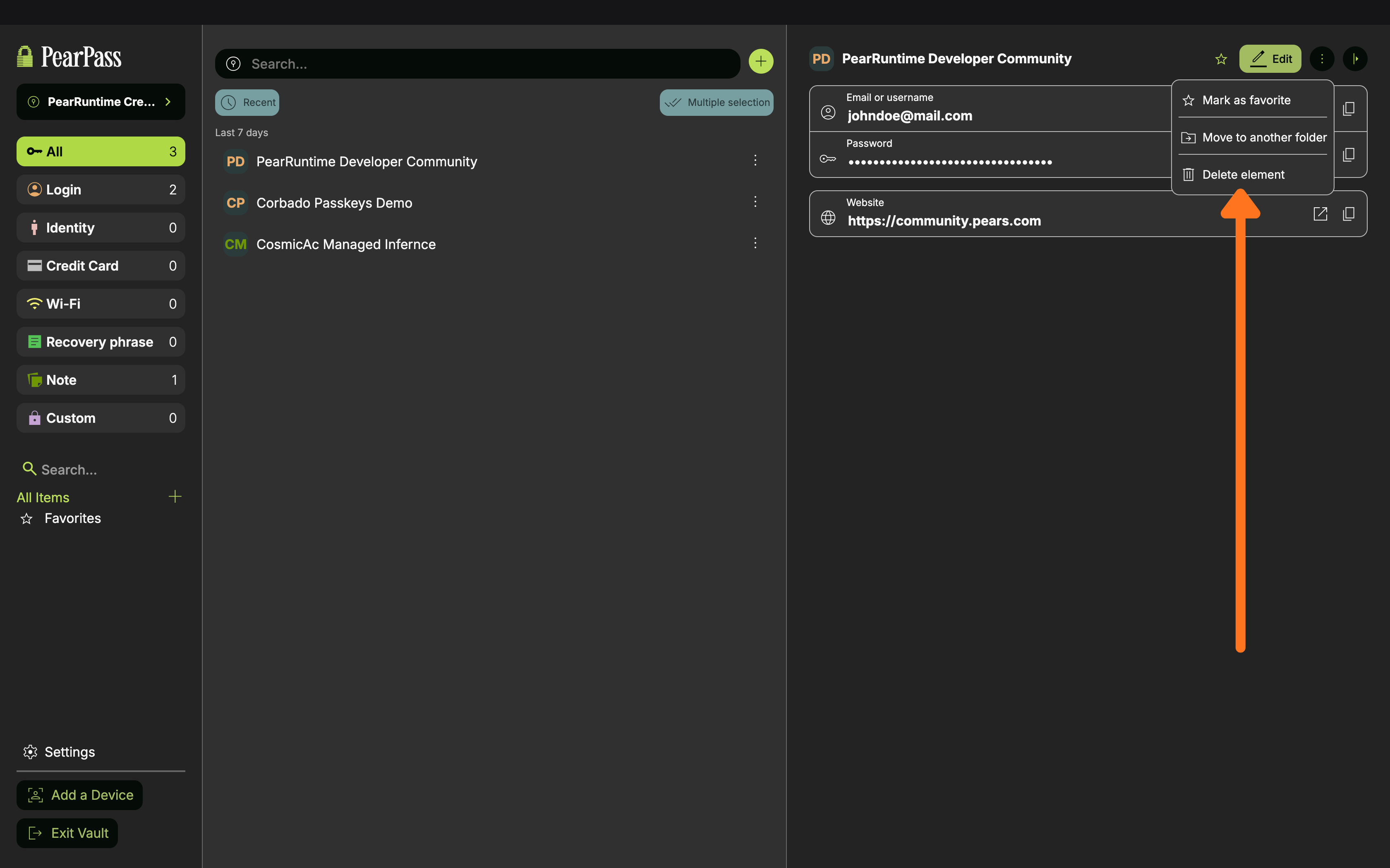
Click Delete element
Click the Delete element button.
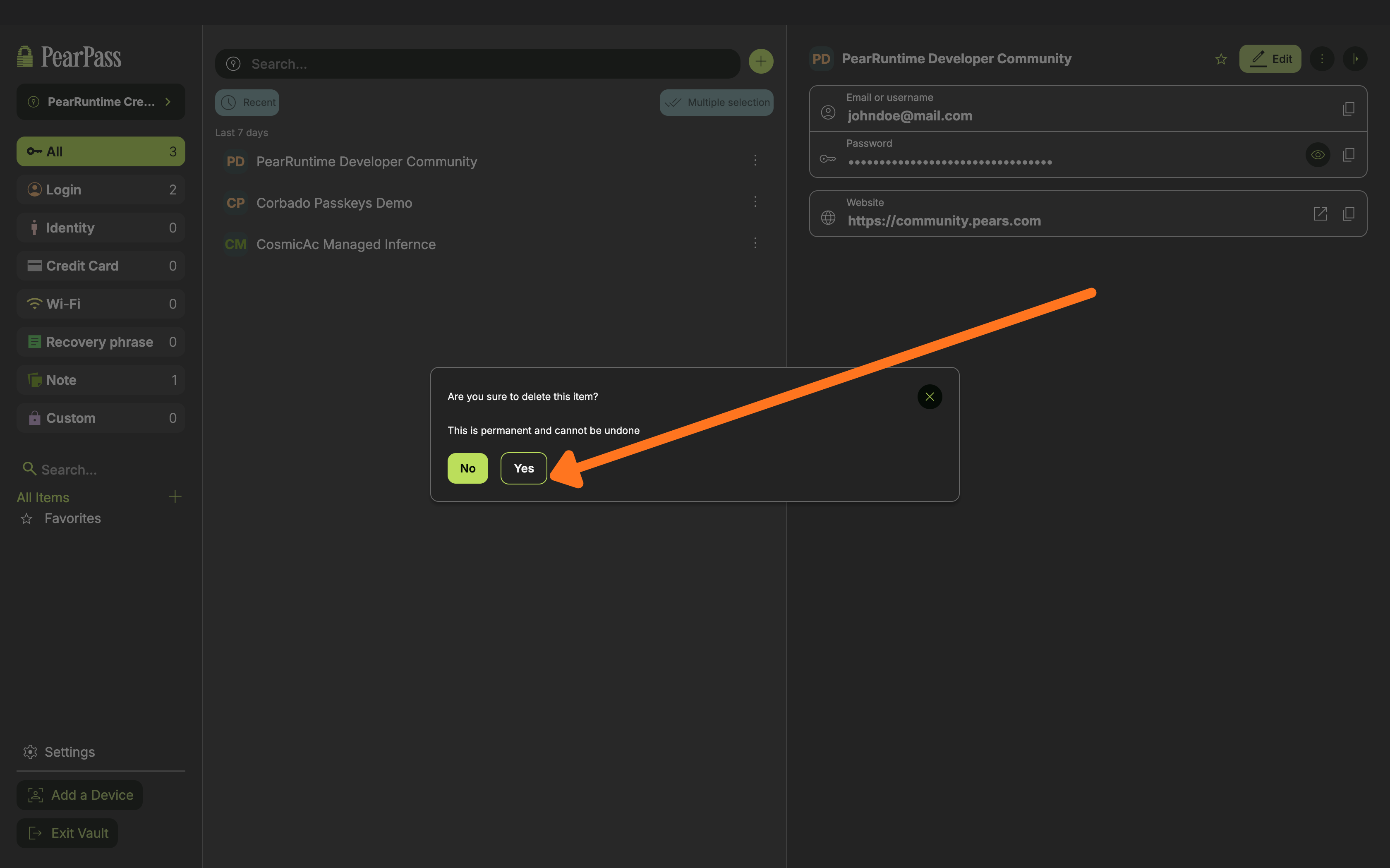
Confirm deletion
When the confirmation screen appears, click Yes to permanently delete the item from your vault.
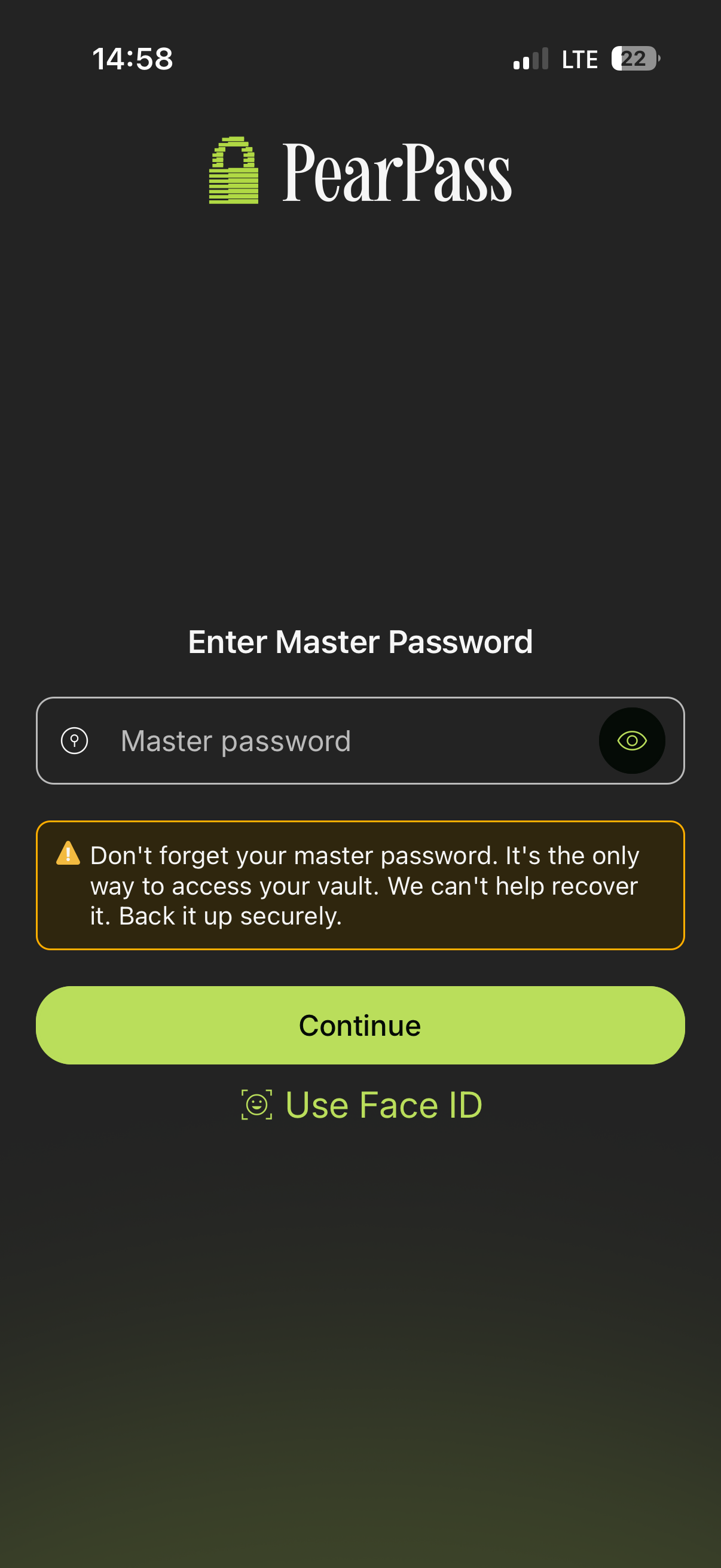
Open PearPass and sign in
Open PearPass on your mobile device and sign in with your master password.
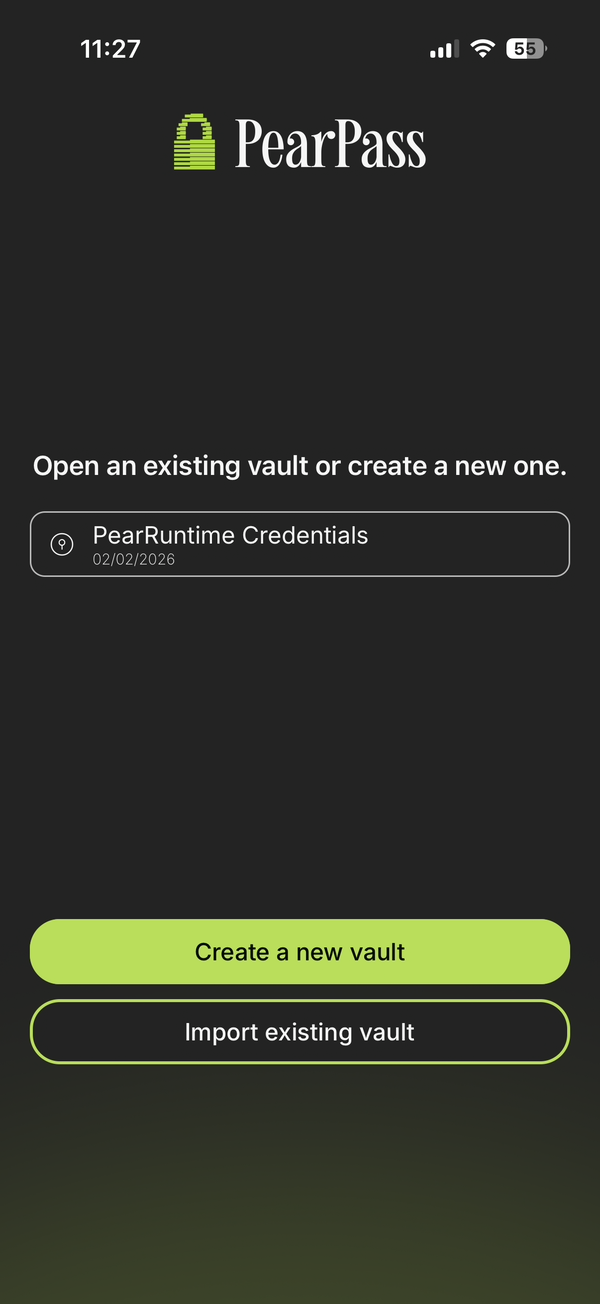
Select the vault
Select the vault that contains the item you want to delete. For this example, we'll use the PearRuntime Credentials vault.
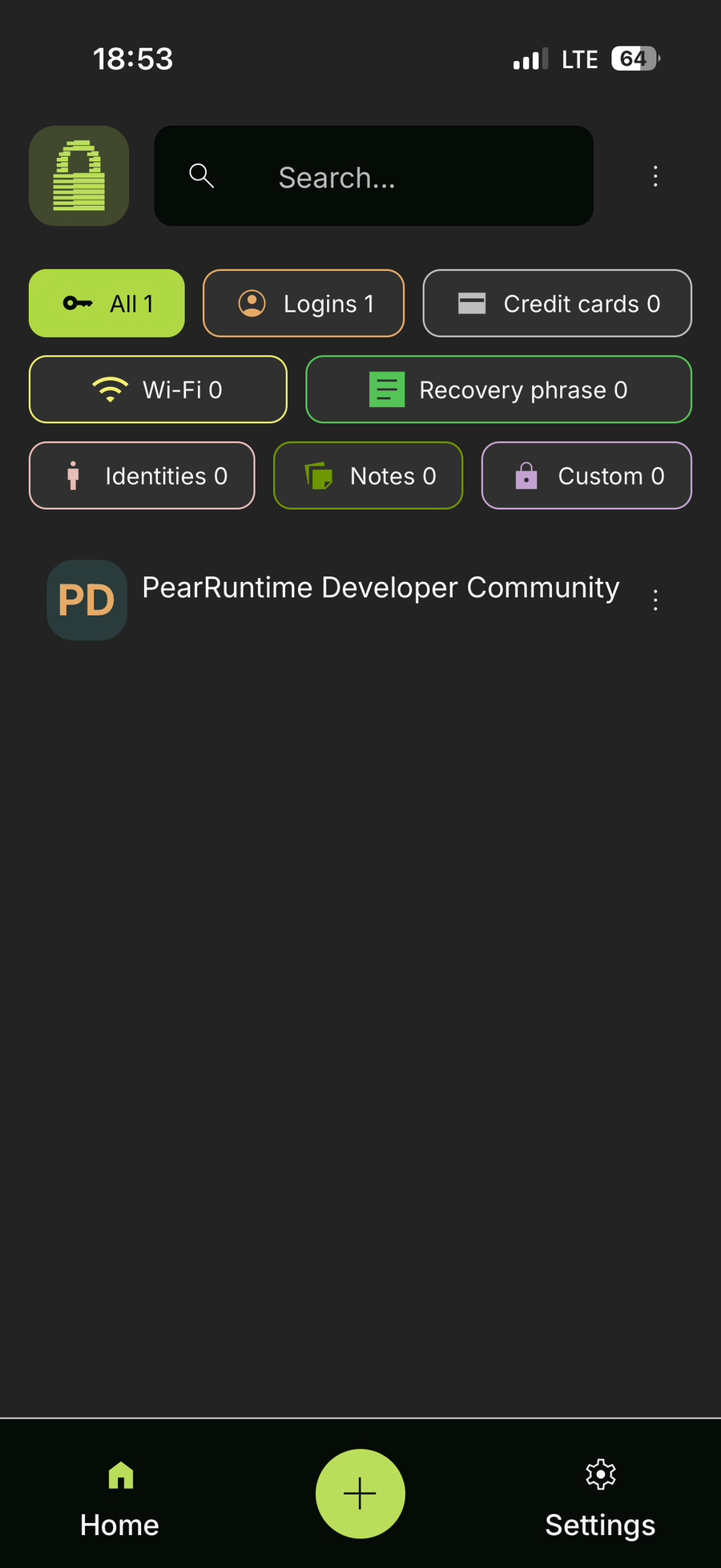
Select the item
Find the item you want to delete in the vault list and click on it to open its details. In this example, we'll be deleting the PearRuntime Developer Community entry.
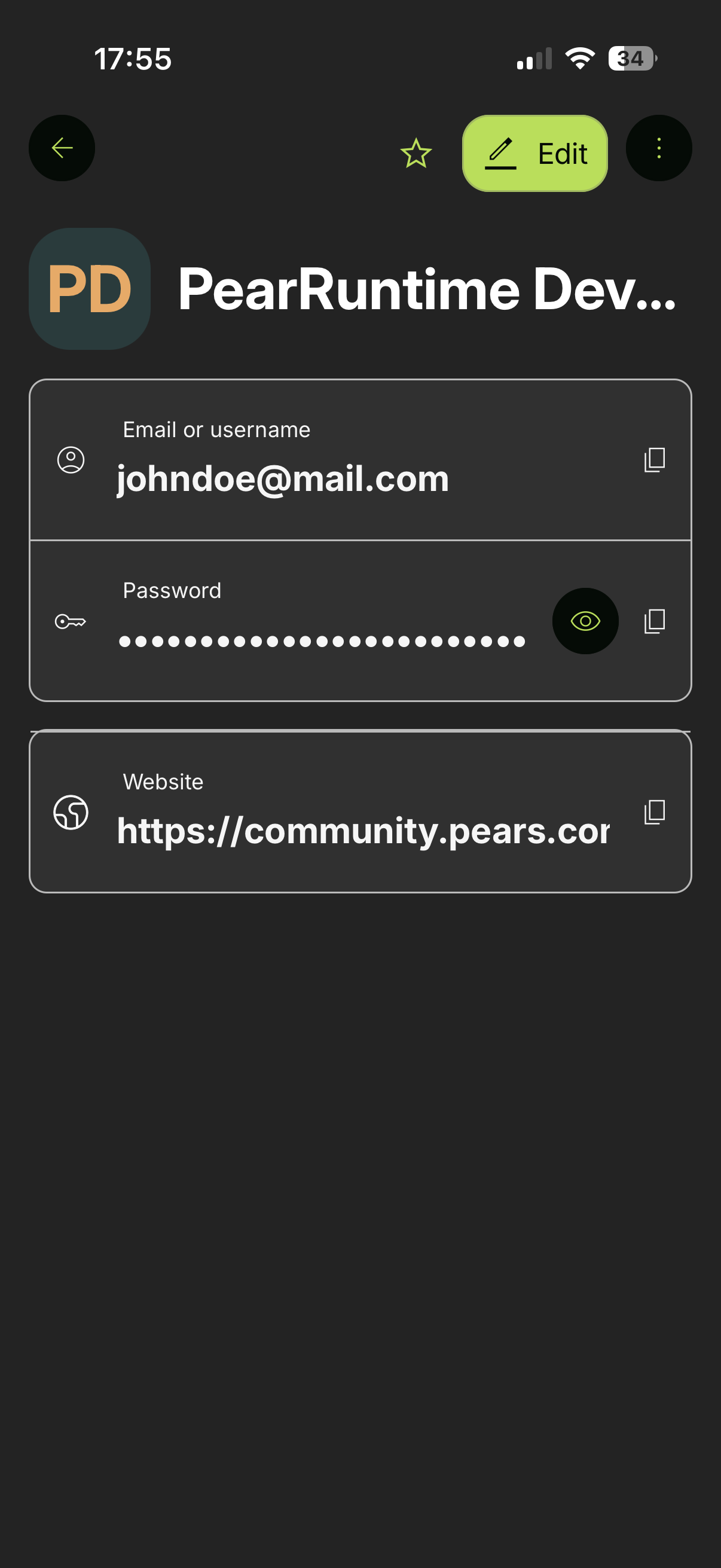
Open the menu
Click the ⋮ icon (next to the Edit button) to open the menu and access the delete option.
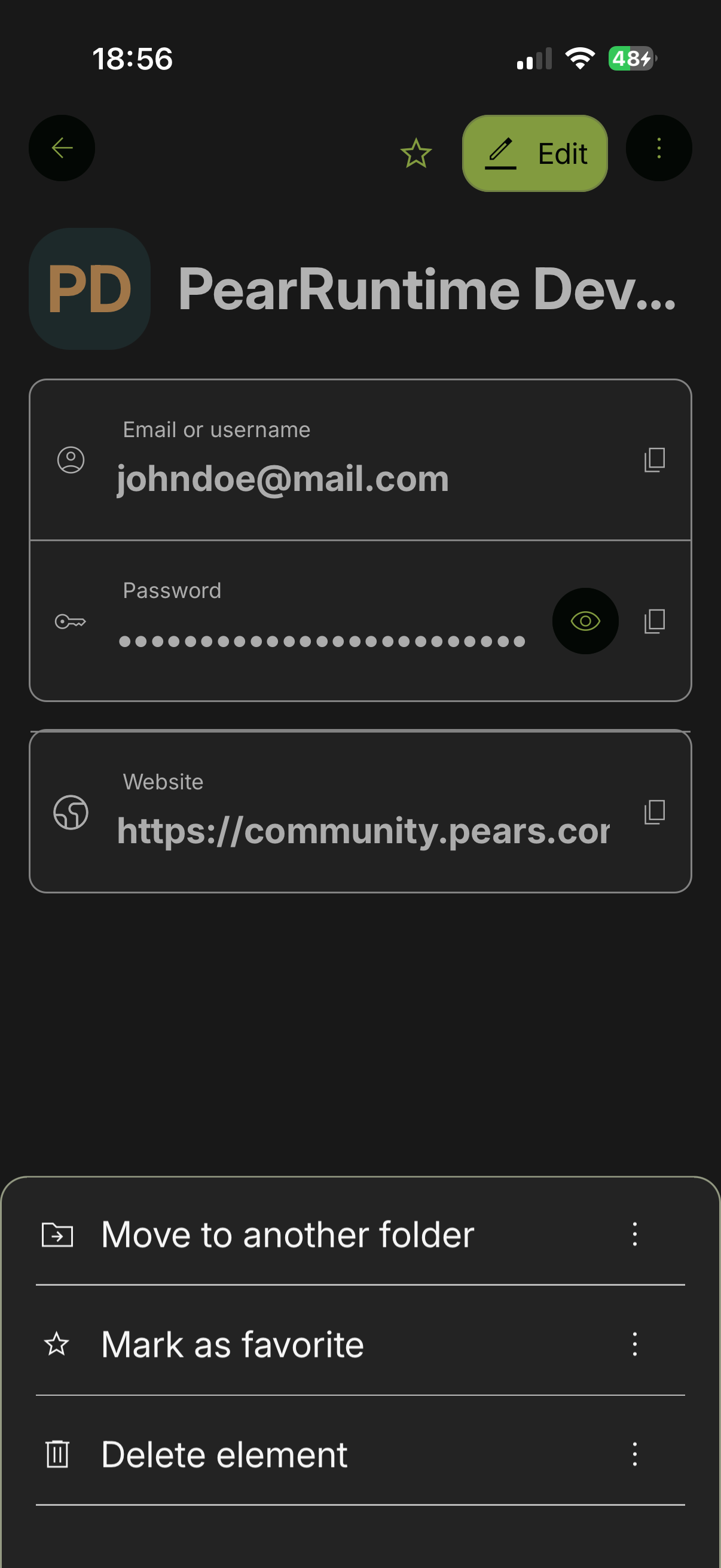
Click Delete element
Click the Delete element button.
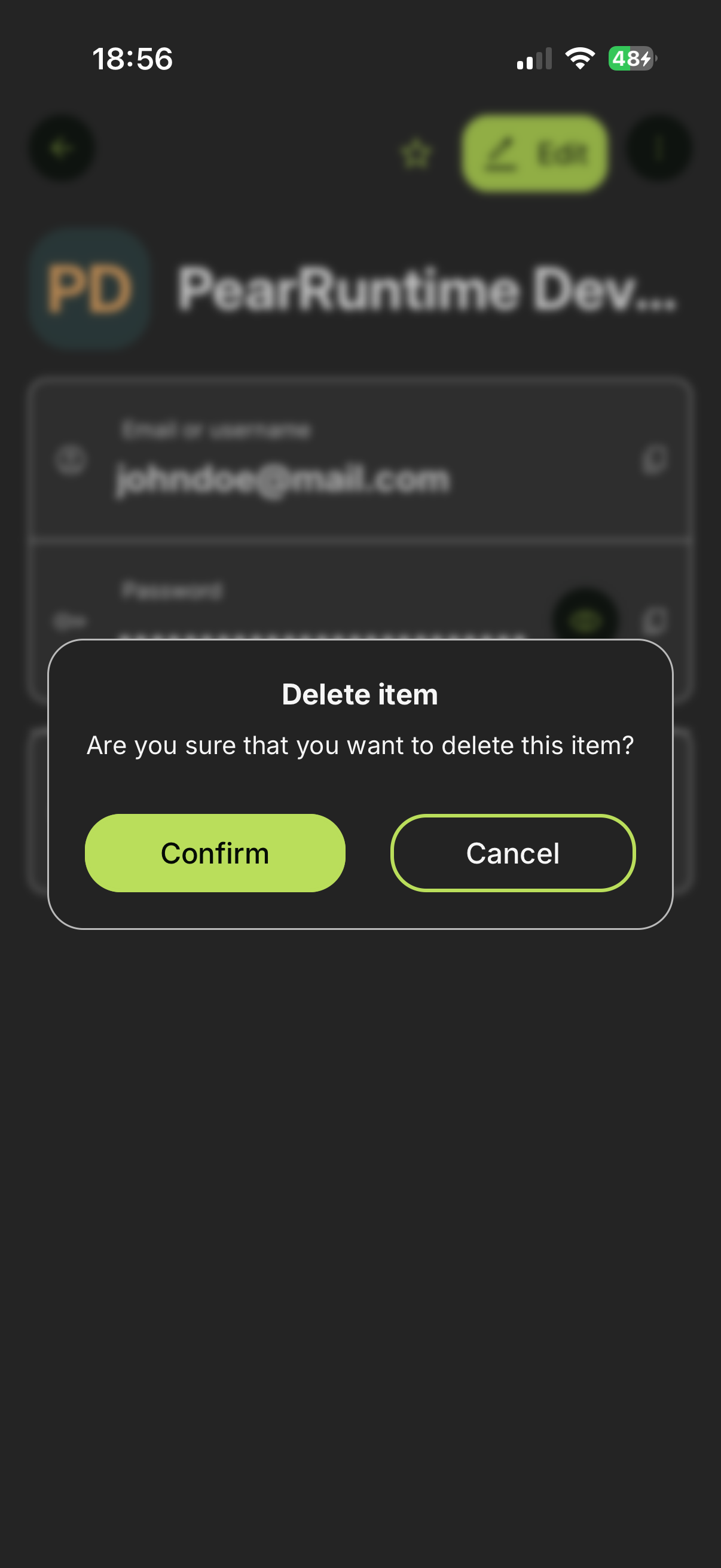
Confirm deletion
When the confirmation screen appears, click Confirm to delete the item from your vault.